Материал из Voronezh.Studio Wiki
|
|
| Строка 25: |
Строка 25: |
| | | | |
| | <br><br><br><br> | | <br><br><br><br> |
| − | [[Project_RL|🔙 назад]] | + | [[Project_RL/en|🔙 back]] |
| | | | |
| | |[[Файл:Maya setting.gif|800px]] | | |[[Файл:Maya setting.gif|800px]] |
| | |} | | |} |
Текущая версия на 15:53, 29 апреля 2021
Maya settings
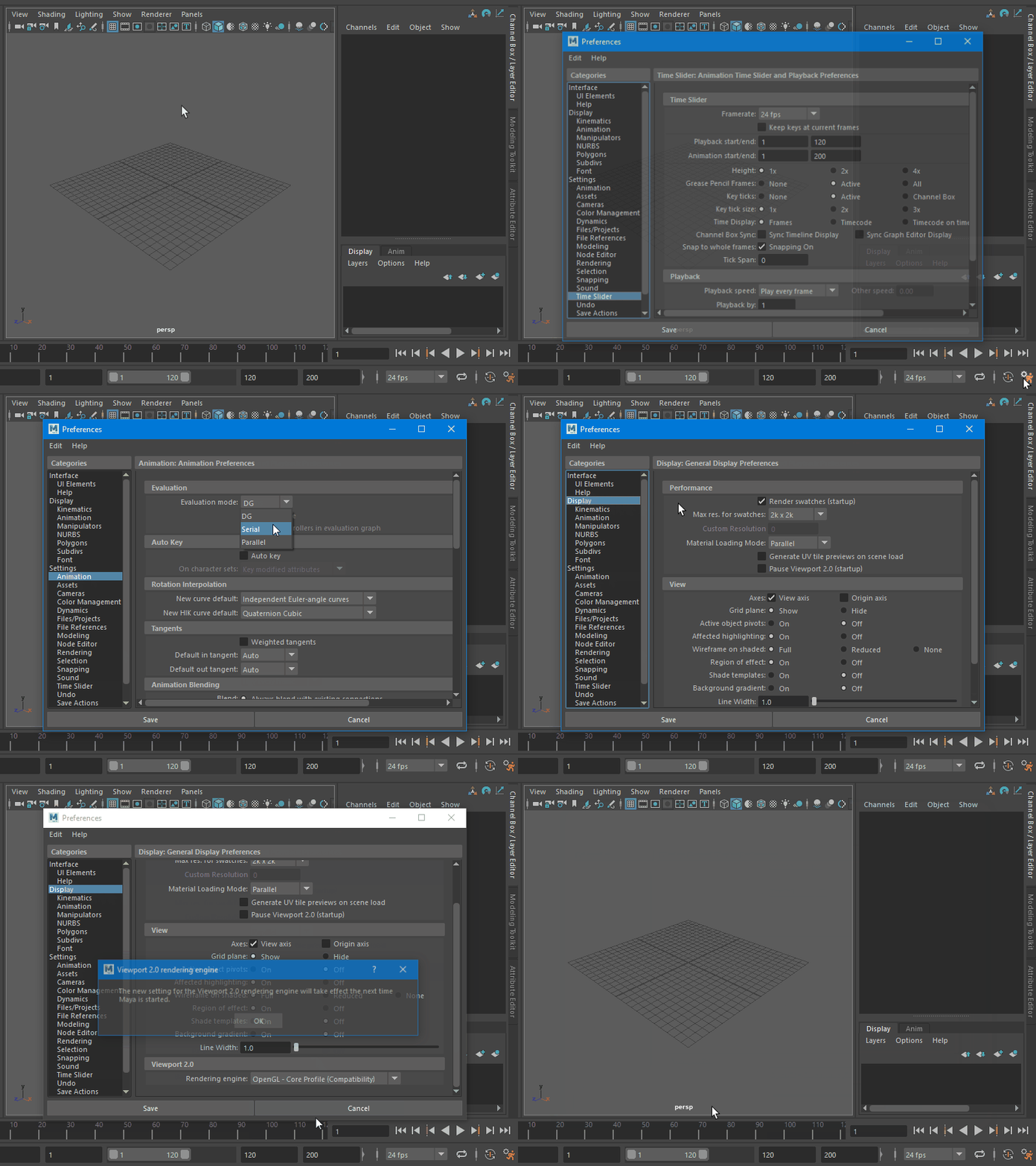
We recommend these settings for correct work of Maya:
- Change settings Renderer to the Viewport 2.0. It's letting you view high-quality lighting and shadows, materials, and other effects directly within the Maya viewport, without the need to render. Some optimizations are only included in Viewport 2.0. This can affect the FPS and the scene loading speed. Viewport 2.0 is the recommended mode for modern graphics cards. Legacy Viewport mode is not supported by Autodesk, and we also do not guarantee that the Legacy Viewport will work stably.
- Set the Evaluation mode: Parallel. Parallelizes evaluation and uses all available cores to evaluate your scene.
- Enable the GPU Override. Maya offloads the processing of certain deformers to your graphics processing unit (GPU) for increased playback performance.
 WARNING WARNING | Some graphics cards do not support GPU Override mode. |
- If there is a problem with the scene (Maya runs really slow, rig does not work correctly):
- first try updating your graphics card driver,
- if that doesn’t help, disable GPU Override.
- In the Display category select either Rendering engine: OpenGL - Core Profile (Compatibility). We recommend this mode. DirectX is not supported by us.
Graphics Hardware
Refer to the following pages for a detailed list of recommended systems and graphics cards.
|
|
🔙 back
|
|}

